
Thank you for purchasing NexVera! This documentation covers everything you need to install, configure, and customize your template. Please read through it before reaching out to support — most common questions are answered here.
NexVera is a modern, fully responsive Technology & IT Solutions HTML template built with Bootstrap 5. It's perfect for IT companies, software houses, startups, SaaS products, AI/ML agencies, digital agencies, and tech consulting firms that need a clean, professional website. NexVera includes 2 homepage variations and all the inner pages you need to launch a complete technology business site — fast, lightweight, and easy to customize.
Built with clean, developer-friendly, well-commented code, NexVera works directly in the browser and includes smooth scroll animations, sliders, a filterable portfolio, animated counters, a blog, pricing tables, team section, and a working contact form.
Main features included:
After downloading the package from your ThemeForest account you will receive a ZIP file. Once extracted, the top-level structure looks like this:
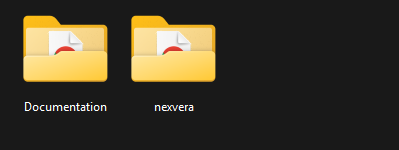
To start building your website, upload the nexvera folder to your hosting environment. You can then open index.html in your browser to view the template.
No build tools, no package managers, no compilers. The template is plain HTML/CSS/JS and works straight from the file system.
nexvera/index.html —
it opens directly in any modern browser (Chrome, Firefox, Safari, Edge). No local
server is needed.
The logo is an SVG image located at:
assets/img/logo.svg        ← Header logo
assets/img/logo-white.svg  ← Footer / dark section logo
To replace it with your own logo:
assets/img/logo.svg and assets/img/logo-white.svg
with your own logo files.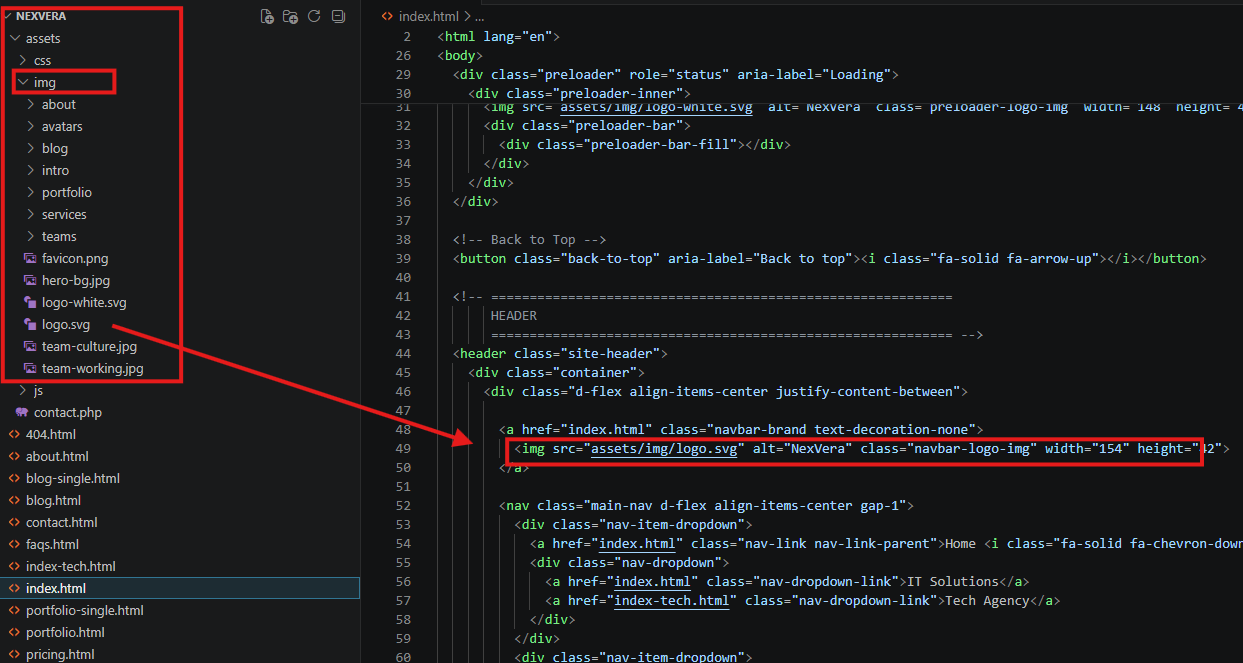
.html file and update
the src attribute on the logo <img> tag.
<img> has width and height
attributes set. Adjust these to match your logo's natural dimensions to prevent
layout shifts.
All global colors are defined as CSS custom properties (variables) at the top of:
assets/css/main.css
Open that file and locate the :root block. The key brand variables are:
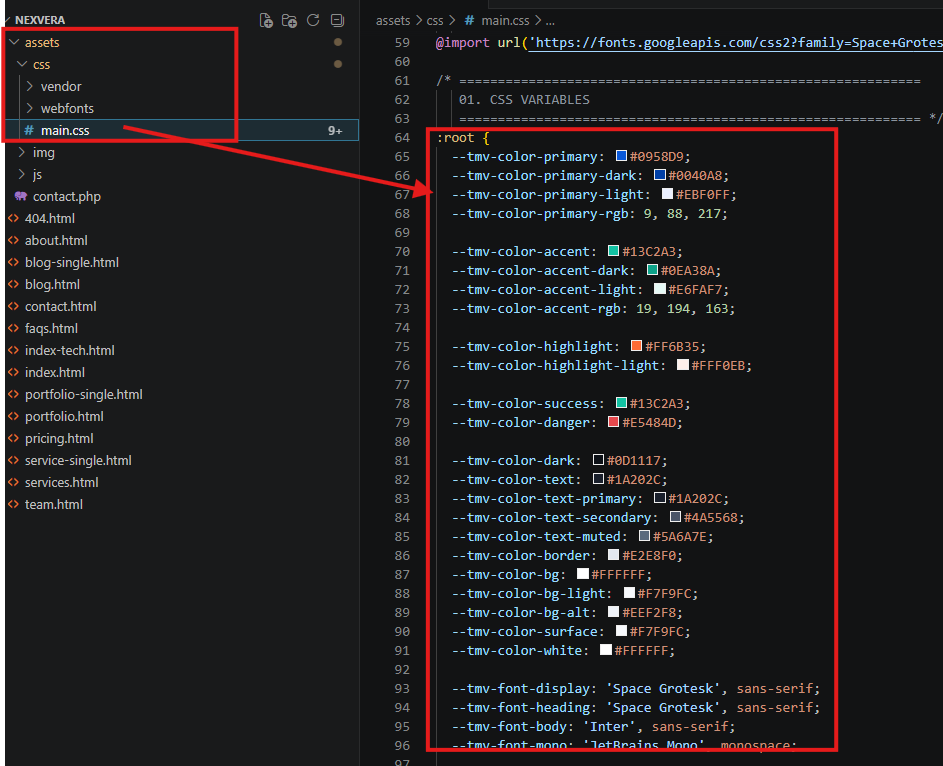
--tmv-color-primary: #0958D9 — main brand color (blue); updates buttons,
links, badges, and active nav states--tmv-color-accent: #13C2A3 — accent color (teal)--tmv-color-highlight: #FF6B35 — highlight / CTA color--tmv-color-dark: #0D1117 — dark sections / footer--tmv-color-bg: #FFFFFF — page background
Changing --tmv-color-primary updates buttons, links, badges, and
active nav states automatically across all pages.
Tip: The file is organized with a clear structure from top to bottom
— use your editor's Find (Ctrl+F) to jump to any section quickly.
NexVera uses three Google Fonts loaded via @import at the top of
assets/css/main.css:
All three fonts are licensed under the SIL Open Font License and are free for commercial use. The template works fully offline for all assets except these Google Fonts — see the self-hosting tip below.
To swap in different fonts:
@import url(...) line near the top of
assets/css/main.css with the new Google Fonts embed URL.
:root block to reference
your new font names./* Example: swap to Space Grotesk + Inter + JetBrains Mono */
@import url('https://fonts.googleapis.com/css2?family=Space+Grotesk:wght@400;500;600;700;800&family=Inter:ital,wght@0,300;0,400;0,500;0,600;1,400&family=JetBrains+Mono:wght@400;500&display=swap');
:root {
--tmv-font-display: 'Space Grotesk', sans-serif;
--tmv-font-body: 'Inter', sans-serif;
--tmv-font-mono: 'JetBrains Mono', monospace;
}
For fully offline / self-hosted fonts: Download the font files from
Space
Grotesk,
Inter,
and
JetBrains Mono,
then replace the @import with local @font-face declarations
pointing to those files.
The portfolio grid (index.html, portfolio.html) filters by
category using plain vanilla JavaScript — no external layout library required.
Markup pattern:
<button class="portfolio-filter-btn active" data-filter="*">All</button>
<button class="portfolio-filter-btn" data-filter=".cat-web">Web</button>

<div class="portfolio-grid">
  <div class="portfolio-item cat-web cat-ai">...</div>
</div>
To add a new category, add a matching cat-xxx class to the portfolio item
and a button with data-filter=".cat-xxx". The filtering logic lives in
assets/js/main.js under "07. Portfolio Filter (Vanilla JS)".
contact.html submits to assets/contact.php via PHP's
mail() function.
mail() will not
work on static hosting such as GitHub Pages, or in most local file://
previews.
Open assets/contact.php and change the recipient address:
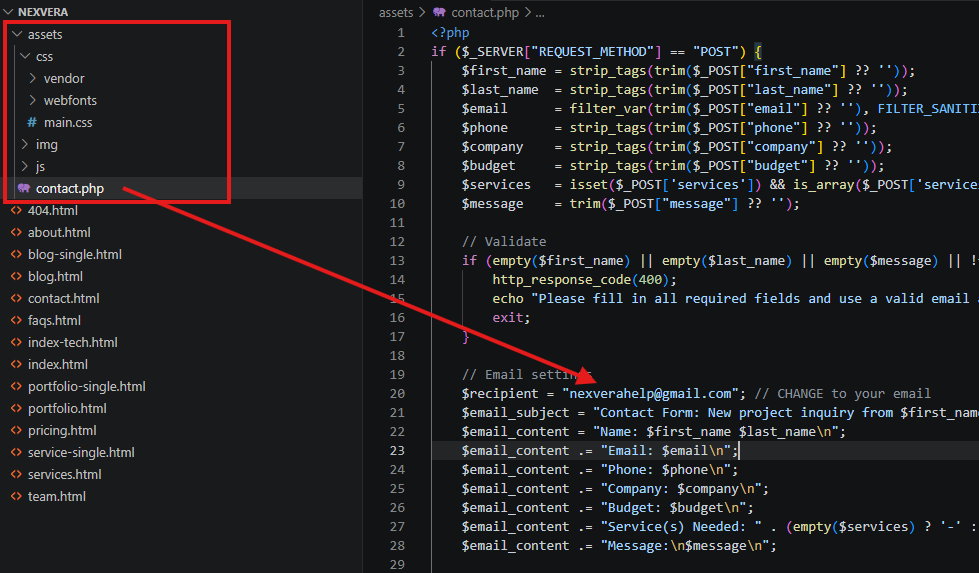
assets/contact.php.$recipient = "nexverahelp@gmail.com"; // CHANGE to your email
assets/js/validate.js handles client-side validation and the
loading/success/error state classes before the request is sent — no changes needed
there.
NexVera is built with a minimal dependency footprint. We thank the creators of the open-source resources listed below. All assets are used under their respective licenses. All vendor scripts and styles are bundled locally — the template works fully offline except for Google Fonts.
NexVera bundles all vendor libraries locally in assets/js/vendor/ and
assets/css/vendor/ — no CDN, no external requests required.
Note: All images are used for preview purposes only. They are not included in the final purchase files and are replaced with placeholder images.
Thank you for choosing NexVera! We hope this documentation helps you set up and customize the template quickly and with confidence.
If you run into anything not covered here, our support team is ready to help.
Submit a support
ticket
or reach out via the ThemeForest comments section, and we will respond within
24–48 hours (usually sooner).
Support hours: Monday – Friday, 10:00 AM – 7:00 PM IST.
Before submitting a ticket, please:
We are committed to making your experience great. Thank you again for your purchase!